Sensor Set 1 Window
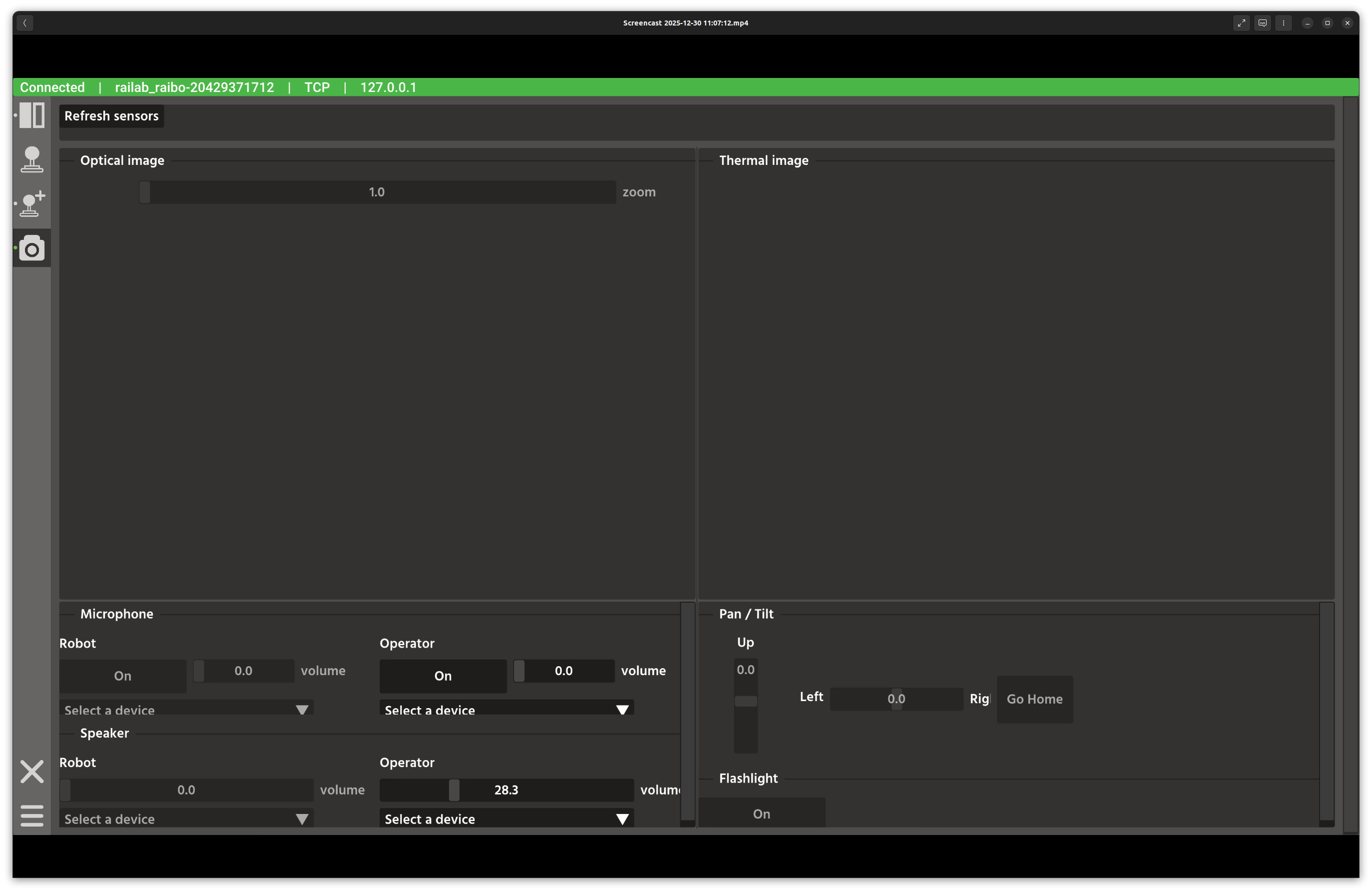
Sensor Set 1 window.
Overview
In the screenshot above, the upper area is divided into optical and thermal camera panels, while the lower area contains audio, pan/tilt, and flashlight controls. Double-clicking a camera panel toggles a full-height view.
Layout
Refresh bar: scans the connection for available optical and thermal topics.
Optical camera panel: RGB streams plus an optical zoom slider.
Thermal camera panel: thermal streams, sized to match the optical panel.
Microphone panel: robot and operator microphone enable + volume controls.
Speaker panel: robot and operator speaker enable + volume controls.
Pan/tilt panel: sliders and quick buttons, plus a Go Home button.
Flashlight panel: on/off toggle for the sensor head light.
Controls and Indicators
Refresh sensors builds topic lists from the active connection and instantiates camera widgets.
Optical zoom calls
/optical_set_zoom.Pan/tilt sliders call
/pan_tilt_set_manual_pan_targetand/pan_tilt_set_manual_tilt_targetwith joint limits fromSensorSet1parameters.Audio controls manage robot/operator microphone and speaker states, including device selection and volume services.
Flashlight toggle calls
/turn_on_lightand/turn_off_light.
Data Sources and Services
Camera discovery uses the connection publisher list and filters for
optical_zoom_camandbosontopics carryingraisin_interfaces::msg::FfmpegPacket.Status and volume updates subscribe to
/robot_microphone_status,/operator_microphone_status,/robot_speaker_volume, and related topics.
Notes
Double-click a camera panel to maximize it for detailed inspection.
If a device list looks stale, click Refresh sensors to rebuild the topic list.