File Manager Window
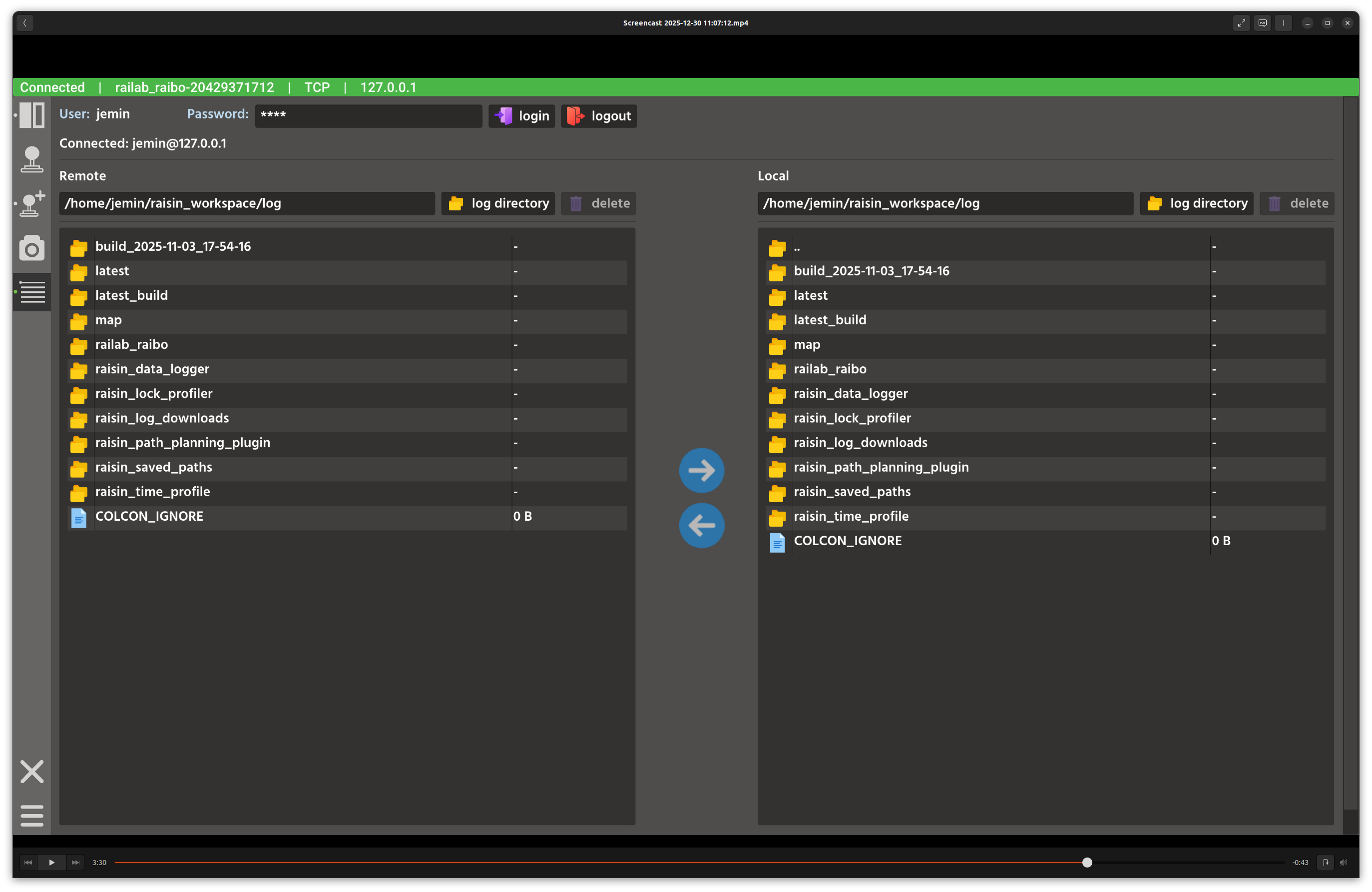
File manager window.
Overview
In the screenshot above, the left panel shows remote logs, the right panel shows local logs, and the center column provides download/upload actions. Authentication controls appear at the top.
Layout
Login bar: user name, password field, and login button.
Remote panel: current path, navigation, delete actions, and a file list.
Action column: download (remote -> local) and upload (local -> remote) buttons with progress feedback.
Local panel: current path, navigation, delete actions, and a file list.
Controls and Indicators
Login triggers remote directory listing via the log tree service.
Directory buttons jump to the configured log root.
Download / Upload use rsync to transfer selected entries.
Delete opens a confirmation dialog for remote or local removal.
Selection supports Ctrl and Shift for multi-select.
Data Sources and Services
Remote file trees are queried via the
LogTreeservice.Transfers use rsync commands spawned from the GUI.
Notes
Use the log root button to quickly return to the default log directory.
Large transfers show progress in bytes and percentages while running.