Robot Window (Operator)
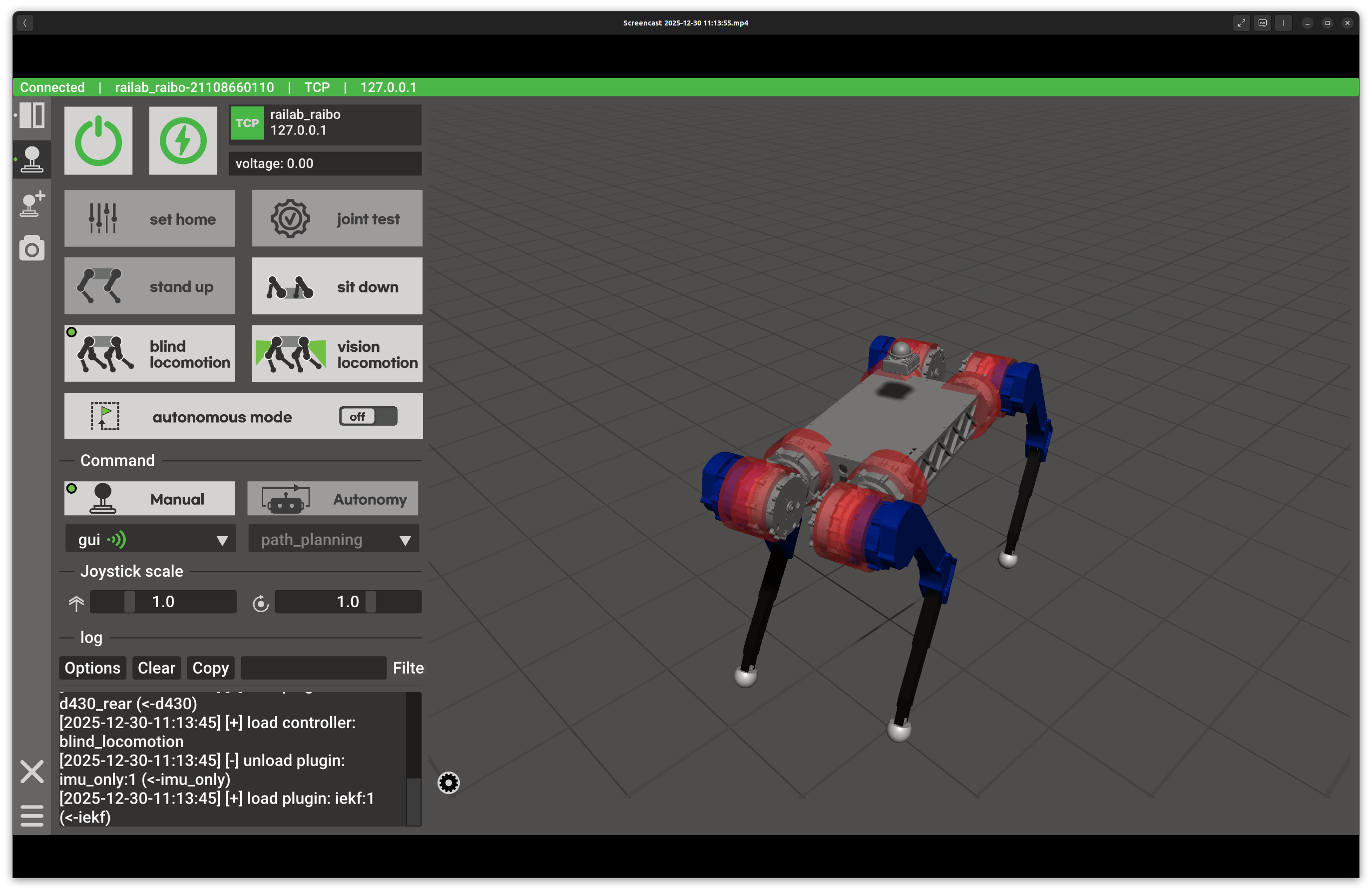
Robot operator window.
Overview
In the screenshot above, the left column provides high-level control actions and status indicators, while the right column renders a live 3D view of the robot in Rayrai. The bottom of the control column contains joystick selection and logs.
Layout
Top-left controls: power and motor buttons with connection status and battery voltage.
Motion commands: set home, joint test, stand up, and sit down actions.
Controller loading: blind/vision locomotion buttons and auto mode toggle.
Command source: manual or autonomy joystick selection with a dropdown source list and listen indicator.
Joystick scale: sliders for forward and yaw rate range limits.
Log panel: real-time GUI log output.
Visualization: Rayrai view with optional actuator and sensor overlays, plus warnings for hot actuators or motor faults.
Controls and Indicators
Power/motor buttons call
turn_on,turn_off,init_motor, andstop_motorservices with safety confirmations when needed.Controller buttons call
load_controllerforblind_locomotionorvision_locomotion.Auto mode toggle calls
load_pluginforpath_planningwhen the required controller is loaded.Listen controls route joystick commands using
set_listenand display the active source.Visualizer settings (gear icon) toggle actuator and sensor overlays.
Data Sources and Services
Status is driven by
robot_state,module_list, andjoy_range.Log output is sourced from
gui_message.describe_robotprovides metadata for the window title and status.set_joy_rangeupdates the joystick scaling sliders.
Notes
Temperature warnings use
actuator_hot_criteriafrom GUI parameters.The visualization overlay highlights actuator and sensor states; disable overlays if you need a clearer camera view.